Index
Install from Disk
Get Extensions
The Get Extensions section lets you install and manage extension preferences.
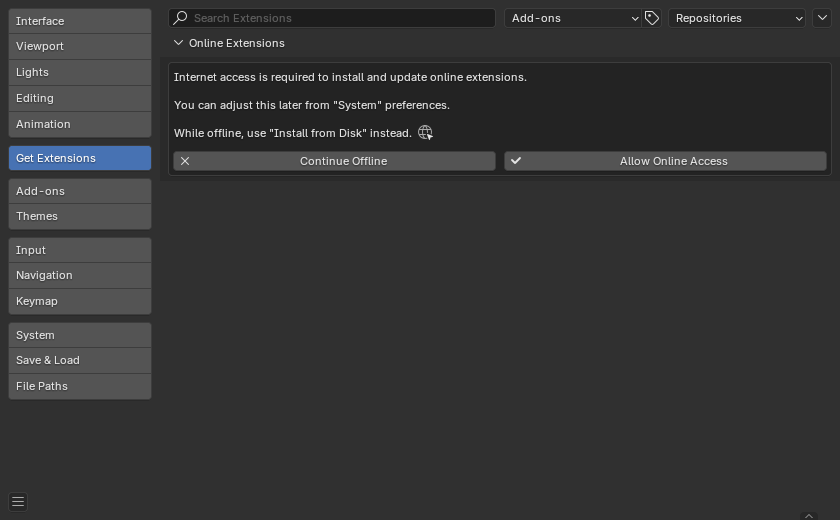
Installing Extensions
There are different ways to install an extension:
- Install from the Website
- Drag the installation URL into Blender.
- Install from Blender
- Search for the extension name and click on Install.
- Install from Disk
- Use the drop-down menu in the top right, or drag-and-drop an extension
.zippackage into Blender.
- Use the drop-down menu in the top right, or drag-and-drop an extension
Any installed extension can be removed. This is a permanent change. To stop an extension temporarily, it is better to Disable it instead.
Updating Extensions
You need to manually check for available updates.
When updates are available, Blender lets you update any of the extensions that have a newer version published in the repository. If updates are available, an Update All button will be available to install all available updates.
The current available version of an extension on the repository is treated as the latest version.
Enable or Disable
Once an extension is installed it can be disabled, or re-enabled, from the user preferences. Some extension types do not support this and will always be shown as enabled.
Extension Settings
- Refresh Remote
- Manually check the online repositories for available updates.
- Refresh Local
- Scan extension and legacy add-ons for changes to modules and metadata, similar to restarting Blender.
- Install Available Updates
- Update all the extensions that have an update available.
- Install from Disk
- Install an extension from a
.zippackage. - This is installed to a Local Repository and no updates will be available.
- Install an extension from a
Filter by Type
You can show only extensions of a single type:
- All: Show all extensions.
- Add-ons: Only show add-ons.
- Themes: Only show themes.
Repositories
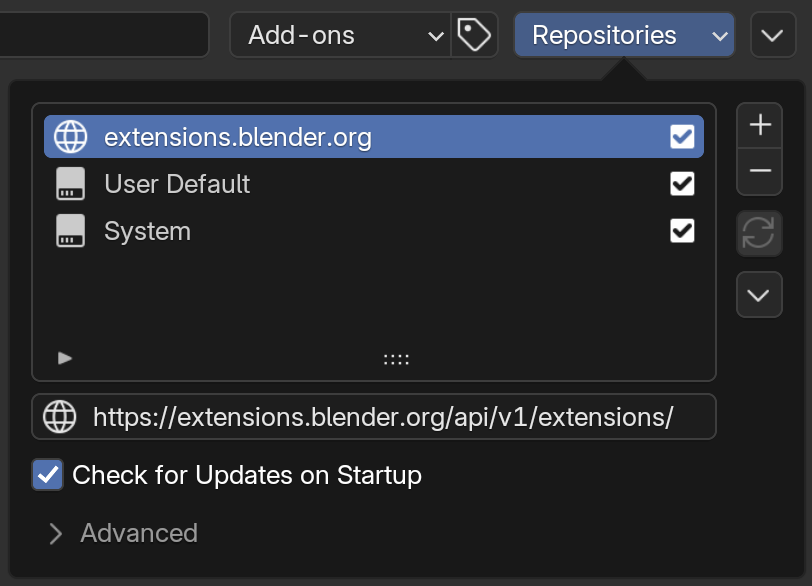
To add new repositories, click the + icon:
- Add Remote Repository
- Add a repository from a URL.
- Add Local Repository
- Add a repository which will be managed by the user, to be used with Install from Disk.
To remove repositories, click the - icon:
- Remove Repository
- Remove an extension repository.
- Remove Repository & Files
- Remove a repository and delete all associated files when removing.
These changes are permanent and cannot be reversed.
Remote Repository
A remote repository supports listing and updating extensions.
Options:
- Check for Updates on Startup
- Allows Blender to check for updates upon launch.
- When updates are available, a notification will be visible on the status bar.
- Access Token
- Personal access token, may be required by some repositories.
Local Repository
A local repository is managed manually by the user.
There are two types of local repositories. By default new local repositories are added as User repositories. This is what you want most of the time.
After creating a repository, it can be changed in the Advanced options to have a source System. These repositories are intended to bundle extensions with Blender, to make it portable.